C# ComboBox Control
C# controls are located in the Toolbox of the development environment, and you use them to create objects on a form with a simple series of mouse clicks and dragging motions. A ComboBox displays a text box combined with a ListBox, which enables the user to select items from the list or enter a new value.
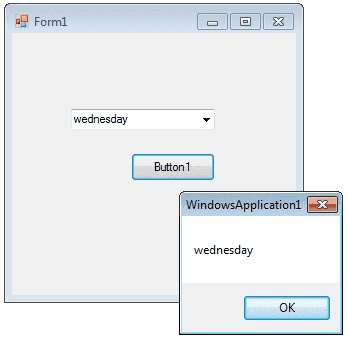
The user can type a value in the text field or click the button to display a drop down list. You can add individual objects with the Add method. You can delete items with the Remove method or clear the entire list with the Clear method.
How add a item to combobox
ComboBox SelectedItem
How to retrieve value from ComboBox
If you want to retrieve the displayed item to a string variable , you can code like this
How to remove an item from ComboBox
You can remove items from a combobox in two ways. You can remove item at a the specified index or giving a specified item by name.
The above code will remove the second item from the combobox.
The above code will remove the item "Friday" from the combobox.
DropDownStyle
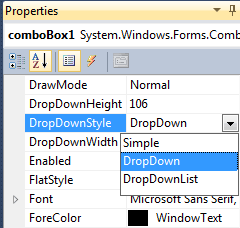
The DropDownStyle property specifies whether the list is always displayed or whether the list is displayed in a drop-down. The DropDownStyle property also specifies whether the text portion can be edited.
ComboBox Selected Value
How to set the selected item in a comboBox
You can display selected item in a combobox in two ways.
ComboBox DataSource Property
How to populate a combo box with a DataSet ?
You can Programmatically Binding DataSource to ComboBox in a simple way..
Consider an sql string like...."select au_id,au_lname from authors";
Make a datasource and bind it like the following...
Combobox SelectedIndexChanged event
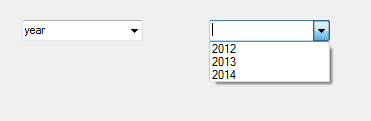
The SelectedIndexChanged event of a combobox fire when you change the slected item in a combobox. If you want to do something when you change the selection, you can write the program on SelectedIndexChanged event. From the following code you can understand how to set values in the SelectedIndexChanged event of a combobox. Drag and drop two combobox on the Form and copy and paste the following source code.
Output
ComboBox Databinding
You can bind data to a Combobox from various resources like Dataset, List, Enum, Dictionary etc. From the following link you can study more about ... ComboBox Databinding
ComboBox Default Value
How to set a default value for a Combo Box
You can set combobox default value by using SelectedIndex property
Above code set 6th item as combobox default value
ComboBox readonly
How to make a combobox read only
You can make a ComboBox readonly, that means a user cannot write in a combo box but he can select the given items, in two ways. By default, DropDownStyle property of a Combobox is DropDown. In this case user can enter values to combobox. When you change the DropDownStyle property to DropDownList, the Combobox will become read only and user can not enter values to combobox. Second method, if you want the combobox completely read only, you can set comboBox1.Enabled = false.
Autocomplete ComboBox
From the latest version of Visual Studio, some of the controls support Autocomplete feature including the ComboBox controls. From the following link you can see how to make .... Autocomplete ComboBox
ComboBox Example
The following C# source code add seven days in a week to a combo box while load event of a Windows Form and int Button click event it displays the selected text in the Combo Box.
Full Source C#- C# Visual Studio IDE
- How to Create a C# Windows Forms Application
- C# Label Control
- C# Button Control
- C# TextBox Control
- C# ListBox Control
- C# Checked ListBox Control
- C# RadioButton Control
- C# CheckBox Control
- C# PictureBox Control
- C# ProgressBar Control
- C# ScrollBars Control
- C# DateTimePicker Control
- C# Treeview Control
- C# ListView Control
- C# Menu Control
- C# MDI Form
- C# Color Dialog Box
- C# Font Dialog Box
- C# OpenFile Dialog Box
- C# Print Dialog Box
- keyPress event in C# , KeyDown event in C# , KeyUp event in C#
- How to create Dynamic Controls in C# ?
- Keep Form on Top of All Other Windows
- C# Timer Control